


TL;DR
- The second Making Tax Digital for Income Tax quarterly update is due on November 7, 2026.
- Although the update supplied to HMRC includes cumulative totals from 6 April to 5 October, your new Q2 records for typical update periods run from 6 July to 5 October.
- If you use calendar update periods, the cumulative update covers 1 April to 30 September. The deadline is still 7 November.
- With AbraTax, you select the correct obligation, link your records to the relevant template, upload the CSV, review the figures and submit the update to HMRC.
- HMRC does not receive your spreadsheet, invoices or receipts. It receives totals for the income and expense categories used in your digital records.
Already have your records in a spreadsheet?Sign up for AbraTax and submit your first MTD Income Tax update free.
If you submitted your first quarterly update in August, the second one follows the same process: bring your spreadsheet up to date, Prepare the cumulative figures, upload them to AbraTax, check them, and submit.
There is one point that can easily cause confusion: when records are added during Q2, they should cover the latest 3 months. The update you send is not limited to those 3 months. It is a running total from the start of the tax year.
If this will be your first submission, you can follow the same steps. Make sure you are signed up for MTD for Income Tax and that your AbraTax registration shows it is connected before you start.
Not sure whether MTD for income tax applies to you?Use the HMRC eligibility checker.
Who needs to submit the Q2 MTD quarterly update?
You need to send quarterly updates if you are using Making Tax Digital for income tax, either because you are required to use it or because you joined voluntarily.
The majority of sole traders and landlords with total qualifying income from self-employment and property over £50,000 in the 2024-2025 tax year will need to comply with MTD for Income Tax for the 2026-2027 tax year, unless they’re eligible for an exemption.
Qualifying income means gross income before expenses. You must send a separate quarterly update for each self-employment or property business.
For example, if you have one self-employment business and one UK property business, each one has its own update.
What does your Q2 update contain?
A quarterly update is a summary of your business income and expenses. Your software adds together the totals from the digital records for each business and creates totals for every income and expense category you have used. HMRC does not receive your individual spreadsheet rows, invoices, or receipts as part of the quarterly update. It receives the category totals created from your digital records. You do not need to make accounting or tax adjustments before sending a quarterly update. Those adjustments are dealt with later as part of the year-end process.
Why is the Q2 update cumulative, and what does that mean for your numbers?
Each quarterly update covers the period from the start of the tax year to the end of the relevant update period. This is what cumulative means: the totals keep building through the year.
| Period | New Q2 records | Cumulative update | Deadline |
|---|---|---|---|
| Standard | 6 July to 5 October 2026 | 6 April to 5 October 2026 | 7 November 2026 |
| Calendar | 1 July to 30 September 2026 | 1 April to 30 September 2026 | 7 November 2026 |
Example: if your cumulative income at the end of Q1 was £12,000 and you recorded another £8,000 during Q2, your Q2 update should show £20,000 of cumulative income. It should not show only the new £8,000.
What records do you need before submitting your Q2 update?
Before you begin, make sure you have completed these checks:
Before you start, please ensure you have carried out the following checks:
- Registered with HMRC for MTD for Income Tax
- Your AbraTax registration is connected to HMRC
- Know if the business has standard or calendar update periods
- Your digital records are kept separately for each self-employed, UK property, and foreign property business.
- You have the AbraTax template that matches the income type you're submitting.
If your first quarterly update has already been submitted, you cannot change between standard and calendar update periods for the tax year.
How to submit your Q2 MTD update with AbraTax
Step 1: Ensure your Q2 records are complete
Begin with the spreadsheet you already use for this business. Make sure all relevant income and expenses for the latest Q2 period (6 July to 5 October 2026, if you use standard update periods, or 1 July to 30 September 2026, if you use calendar update periods) have been recorded.Check the date, amount, and category for each record.
If you find an error in a Q1 record, correct it in the same digital records before preparing Q2. The cumulative totals in Q2 can include the correction.
If you receive no income and incur no expenses during Q2, you must still send a quarterly update to tell HMRC. Your software uses the record held for the year to create the update.
Need help preparing your spreadsheet first? Read our guide to the records you need for your Q2 MTD update.
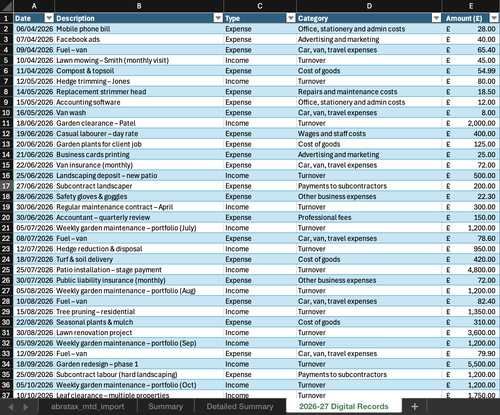
Check that the Q2 transactions are complete in the correct digital records spreadsheet.
You can also download AbraTax’s example MTD compliant digital record for self employment.
Step 2: Prepare and upload AbraTax CSV
Open your AbraTax Dashboard and choose the registration you have connected and want to use.
In the obligations area, find the correct Q2 obligation under the relevant income type and click "File Return".
Download the template for that income type. AbraTax provides separate templates for self-employment, UK property, and foreign property, so use the one that matches the obligation you selected.
Link the cumulative category totals from your own records to the AbraTax template using formulas. Do not type or copy and paste the totals into the submission template. The formulas create a digital link between your records and the template.
When the template is complete, move the import tab to a new workbook and save that workbook as a CSV file.
Return to AbraTax and add the CSV to the upload box. You can drag and drop the file, then select "Review".
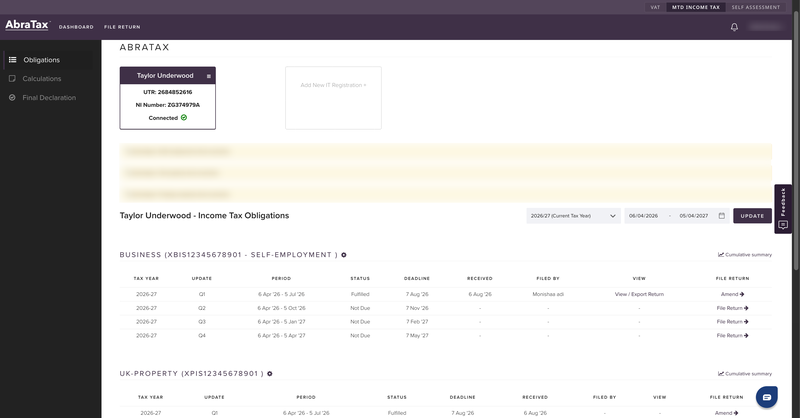
Select the Q2 obligation and choose File Return in AbraTax.
If you have not used AbraTax before, create your account and make your first submission free.
Step 3: Review your income expenses and profit and loss
AbraTax will display the figures created from your uploaded CSV. Check them before submitting anything to HMRC.
- Income - review total income, and each income category used for the business.
- Expenses - check the cumulative expense total and each expense category used for the business.
- Profit and loss - check whether the result is consistent with the income minus expense for the records submitted so far.
If a figure does not look right, go back to your digital records and template, correct the source information, and create a new CSV. Do not submit a figure simply because it has passed the upload stage. Remember that a quarterly update is a summary, not a tax return. The profit or loss and estimated tax position shown at this stage are based on the information available so far. The estimated tax position is not your final tax bill.
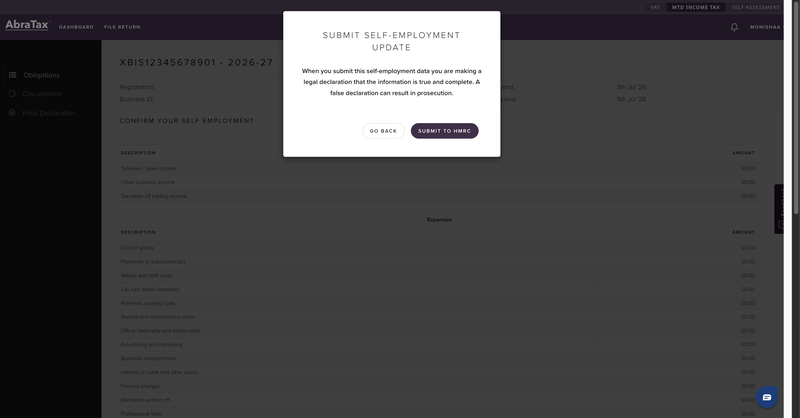
Review the cumulative income, expenses and profit or loss before submitting.
Step 4: Submit to HMRC and save the confirmation
When you are satisfied that the figures are correct, choose whether to save the update as a draft or submit it now. If you are ready, submit the update to HMRC.
After HMRC accepts the update, AbraTax changes the status to "submission successful". AbraTax also provides an HMRC submission receipt and confirmation email, so you can keep a record of what was filed.
After the update has been sent, you can view an estimated tax bill in compatible software or in your HMRC online service account. HMRC may include other information it already holds when producing the estimate. It is not a final tax calculation.When you are satisfied that the figures are correct, choose whether to save the update as a draft or submit it now. If you are ready, submit the update to HMRC.
After HMRC accepts the update, AbraTax changes the status to "submission successful". AbraTax also provides an HMRC submission receipt and confirmation email, so you can keep a record of what was filed.
After the update has been sent, you can view an estimated tax bill in compatible software or in your HMRC online service account. HMRC may include other information it already holds when producing the estimate. It is not a final tax calculation.
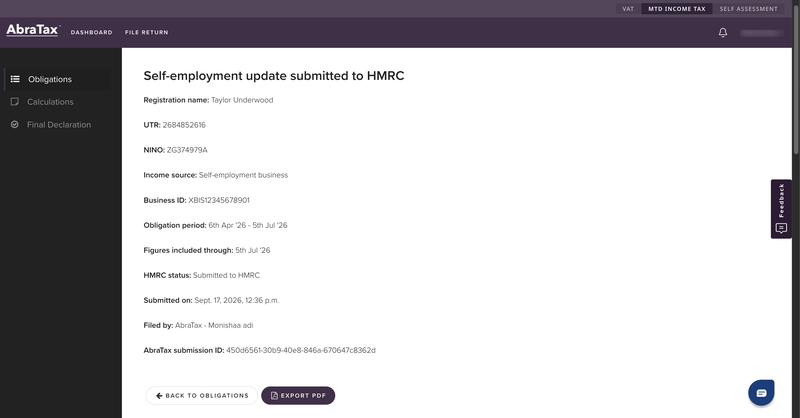
Check that the Q2 status says Submission Successful and save the confirmation.
Can you correct a quarterly update after submitting?
Yes, correct the digital record in your record-keeping software because quarterly updates are cumulative. The next update can include the corrected totals without you having to resend each earlier update.
You need to make a change after sending the fourth quarterly update. HMRC says you may need to resend the fourth update before making year-end tax adjustments. AbraTax supports submissions and amendments, but the action you need depends on when the error was found. If you're unsure how a correction applies to your circumstances, ask an accountant or tax adviser. AbraTax can explain how to use the software, but it cannot provide personal tax advice.
What happens if you submit Q2 early?
You do not have to wait until 7 November. HMRC normally allows you to send the update anytime from the end of the update period to the deadline. You can also submit up to 10 days before the end of the update period if you do not expect to record any more transactions. If another transaction happens after you submit early, update your digital record so the corrected cumulative figures are included in a later update.
What happens if you miss the 7 November deadline?
HMRC will not apply penalty points for the late quarterly updates during the 2026-2027 tax year. This applies to all four quarterly update deadlines in the first mandatory year. The update is still required.You must continue keeping digital records and send the required quarterly updates before you can submit your tax return. Penalties can still apply if the tax return itself is late or tax is paid late.
If you also missed the Q1 submission, please refer to the guide on missing the 7 August MTD deadline for further details.
Q2 submission checklist
Before submitting your Q2 update, work through the checks below in order.
Before opening AbraTax
- Make sure you have recorded all the income and expenses for the business you are filing.
- Make sure your records are complete up to 5 October 2026 if you use standard update periods, or 30 September 2026 if you use calendar update periods.
- Make sure you have corrected any mistakes you found in your earlier records.
- Make sure the totals cover the period from the start of the tax year, rather than only the latest three months.
- Make sure you have kept the records for each self-employment, UK property or foreign property business separate.
When preparing the file
- Make sure you open the correct connected registration in AbraTax.
- Make sure you choose the Q2 obligation for the correct income source before selecting File Return.
- Make sure you download the AbraTax template that matches the income source you are submitting.
- Make sure you link the category totals from your digital records to the template using formulas. Do not type or copy and paste the totals manually.
- Make sure you move the completed import tab to a new workbook and save that workbook as a CSV file.
Before pressing submit
- Make sure you upload the correct CSV file and select Review.
- Make sure the cumulative income figures shown in AbraTax match the totals in your spreadsheet.
- Make sure the cumulative expense figures shown in AbraTax match the totals in your spreadsheet.
- Check that the profit or loss shown is consistent with the income and expense figures you have checked.
- Make sure you correct the source records and upload a new CSV if any figure is wrong. Submit only when the information matches your records.
After submitting
- Make sure AbraTax shows Submission Successful before you close the page.
- Make sure you open the submission details and download the HMRC submission receipt.
- Keep the receipt with your Q2 records as confirmation that the update was submitted.
- If you check the estimated tax position, make sure you remember that it is an estimate based on the information available so far, not your final tax bill.
Ready to submit Q2?
If your records are already in Excel or Google Sheets, you do not need to replace the way you work. Use the AbraTax template to create the digital link, review the figures, and send the update to HMRC.
Sign up for AbraTax and submit your first MTD income tax update free.