


TL;DR
To switch from Xero, FreeAgent, or QuickBooks to AbraTax, export your transaction records from your current software as a spreadsheet, upload that spreadsheet to AbraTax, and submit it to HMRC. MTD for Income Tax only requires digital records and HMRC-recognised software, so a spreadsheet plus AbraTax replace a full accounting platform. Here's where to export from each one.
| Your current software | Where to find your data | Export it as | Then in AbraTax |
|---|---|---|---|
| Xero | Reporting → Account Transactions | Excel spreadsheet | Upload the spreadsheet and submit to HMRC. |
| FreeAgent | Accounting → Reports → Show transactions | Spreadsheet | Upload the spreadsheet and submit to HMRC. |
| Quickbooks | Reports → Transaction list by date | CSV or Excel | Upload the spreadsheet and submit to HMRC. |
Here's the thing: If you're a sole trader or landlord using Xero, FreeAgent or QuickBooks, you're probably paying for a lot of features you don't need and may never have needed. MTD Income Tax doesn't require full accounting software. It doesn't require receipt scanning, bank feeds, or a dashboard showing your cash flow. HMRC just needs your records kept digitally and submitted through compliant software. A spreadsheet does that. AbraTax bridges the gap between your spreadsheet and HMRC. That's it. Here's how to get your records out of these platforms and be fully MTD-compliant.
What MTD actually requires:
Under Making Tax Digital for Income Tax, HMRC requires that you:
- Keep your income and expense records in a digital format.
- Submit quarterly updates and a final declaration through HMRC-recognised software.
That's the full list. No receipt scanning, no cloud accounting, no bank reconciliation, just digital records submitted the right way.
AbraTax is HMRC-recognised bridging software, which means you can keep your records in a spreadsheet and submit directly from there. Simple!
How to migrate from Xero to AbraTax?
Xero makes it straightforward to export your transaction data. Here's where to find it.
1. Go to Reporting in the top navigation bar and select all reports from the drop down menu.
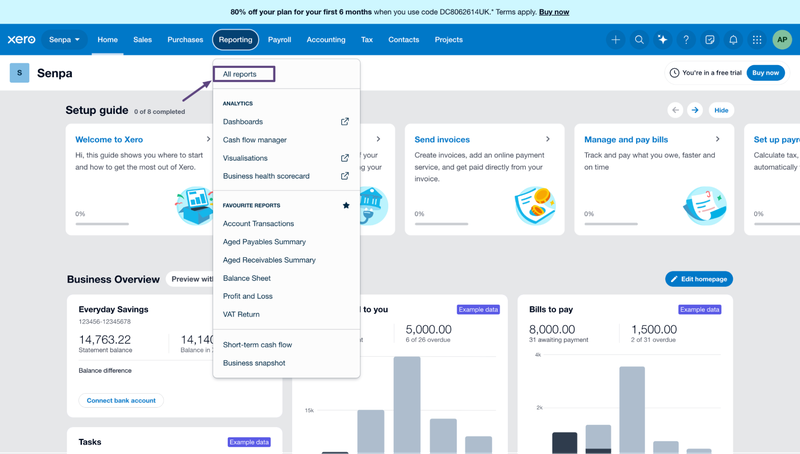
2. Click Account Transactions. It appears under Favourites at the top of the Reports page.
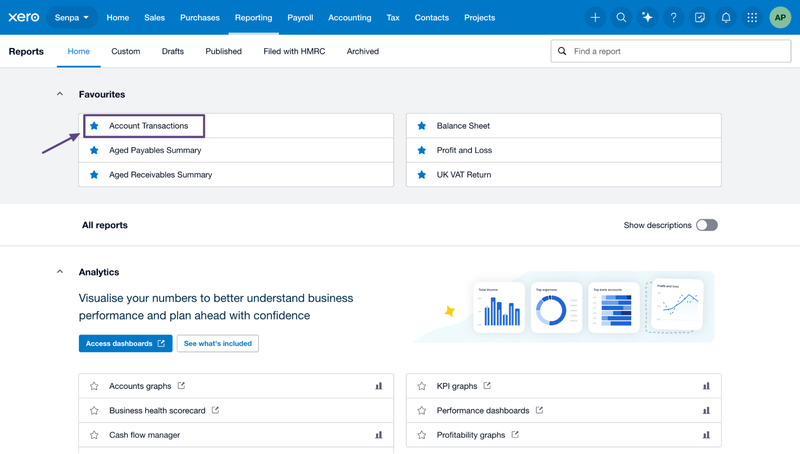
3. Set the Date range to cover the tax year you want to export.
4. Click Update to load your data.
5. Click the Export button in the bottom right corner.
6. Select Excel from the drop-down. PDF and Google Sheets are also available.
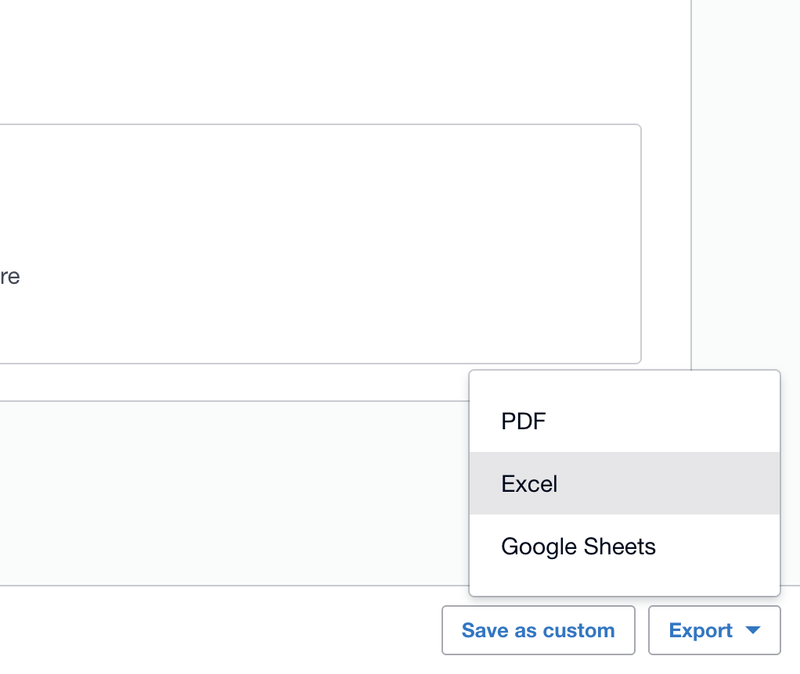
Your transaction records will still download as a spreadsheet organised by account. Repeat for each tax year you want to keep on record.
Optional: Saving your Receipts.
If you've been scanning receipts in Xero and want to keep copies, you can export those too, though this isn't required for MTD compliance. If you do want to keep them, we'd suggest organising them into folders by tax year (example 2024-25, 2025-26) and saving them as a zip file alongside your spreadsheet records. This keeps everything tidy and easy to find if HMRC ever asks.
You're done
Once you've exported your records. You've got everything you need. Open AbraTax, upload a spreadsheet, and you're ready to submit your quarterly updates to HMRC. No complicated migration, no data transfer, just a spreadsheet and software that actually does what you need.
How to migrate from FreeAgent to AbraTax?
FreeAgent is a solid piece of software. It's just more than most sole traders and landlords actually need - especially now that MTD has arrived and the question of what you're legally required to do is clearer than ever.
The answer: keep your records digitally and submit through HMRC-recognised software. A spreadsheet handles the first part; AbraTax handles the second. You don't need a full accounting platform in between. Here's how to get your data out of FreeAgent.
How to export your records from FreeAgent?
The FreeAgent export option lives in the report section. Here's how to find it:
- Go to Accounting in the top navigation and select reports from the drop down menu.
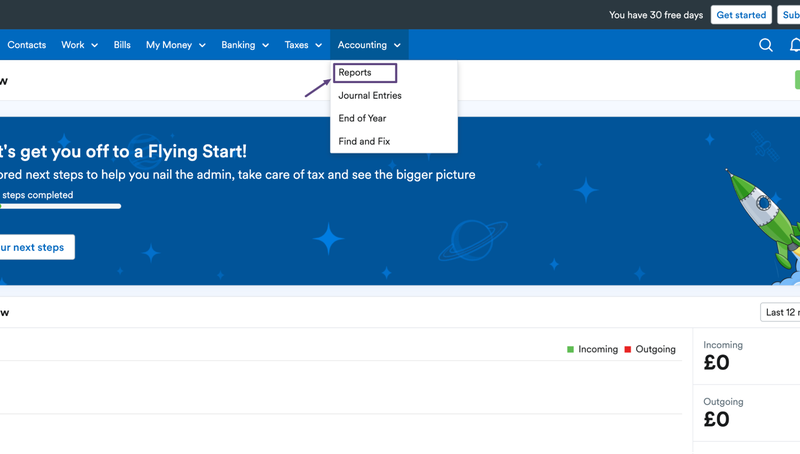
2. Scroll down to the details section and click Show transactions.This gives you a breakdown of all income and expense across your FreeAgent categories.
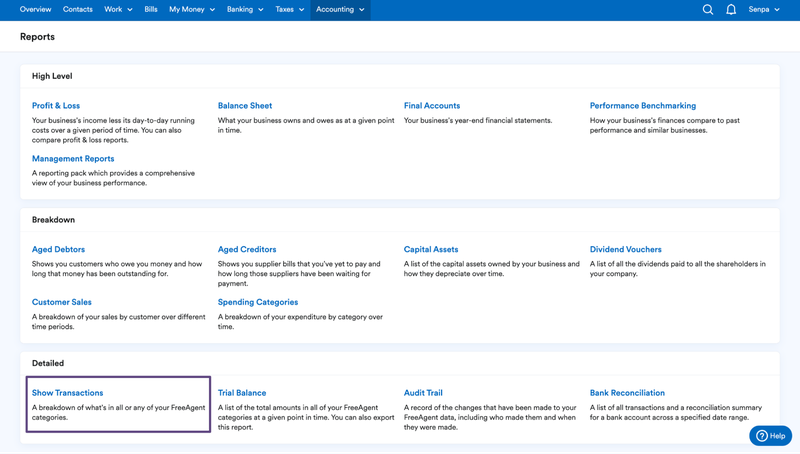
3. Set the date range to cover the tax year you want.
4. Export the report, save it as a spreadsheet.
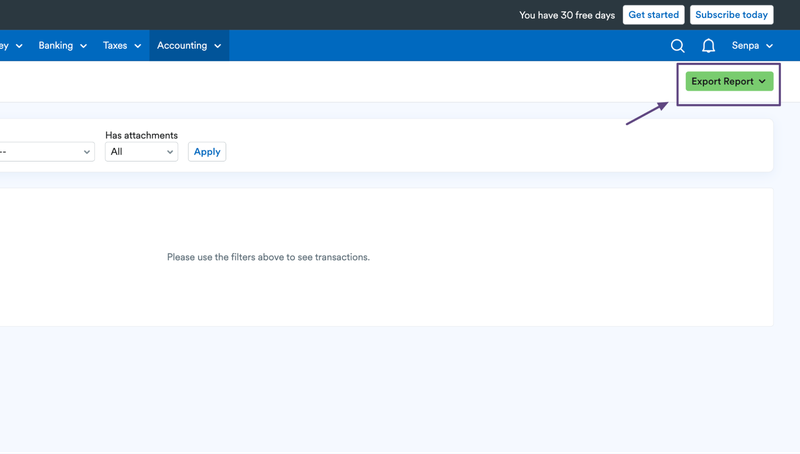
5. Repeat for each tax year you want to retain.
Optional: Saving your Receipts.
If you've been scanning receipts in FreeAgent and want to keep copies, you can export those too, though this isn't required for MTD compliance. If you do want to keep them, we'd suggest organising them into folders by tax year (example 2024-25, 2025-26) and saving them as a zip file alongside your spreadsheet records. This keeps everything tidy and easy to find if HMRC ever asks.
You're done
Once you've exported your records. You've got everything you need. Open AbraTax, upload a spreadsheet, and you're ready to submit your quarterly updates to HMRC. No complicated migration, no data transfer, just a spreadsheet and software that actually does what you need.
How to migrate from QuickBooks to AbraTax?
If you are a sole trader or landlord using QuickBooks, there is a reasonable chance you are paying for more than MTD income tax actually requires. HMRC doesn't need bank feeds, payroll modules, or cash flow forecasts.
It needs your records kept digitally and submitted through recognised software. A spreadsheet can handle the records. AbraTax handles the submission. Here's how to get your data out of QuickBooks.
How to export your record from QuickBooks?
QuickBooks keeps your transaction data in its reports section. Here's the quickest route to a full export:
- Go to Reports in the left navigation bar, select Reports and analytics
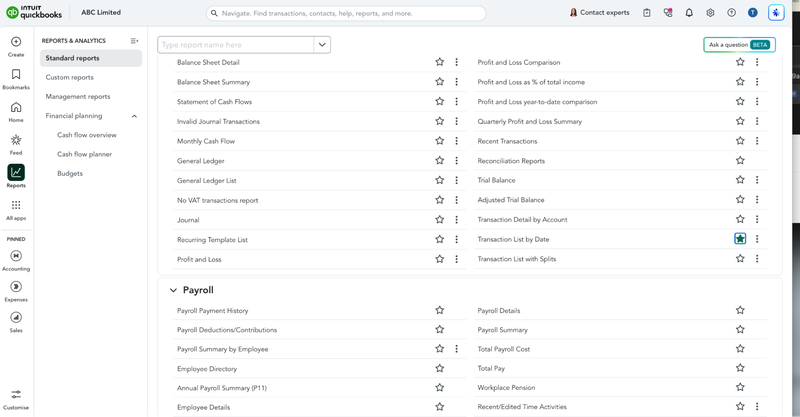
2. Under Standard reports, find Transaction List by Date. It's in the main list, right-hand column
3. Set the report period to Custom Dates and enter the tax year you want to export (6 April to 5 April).
4. Click the three-dot menu icon at the top right of the report view.
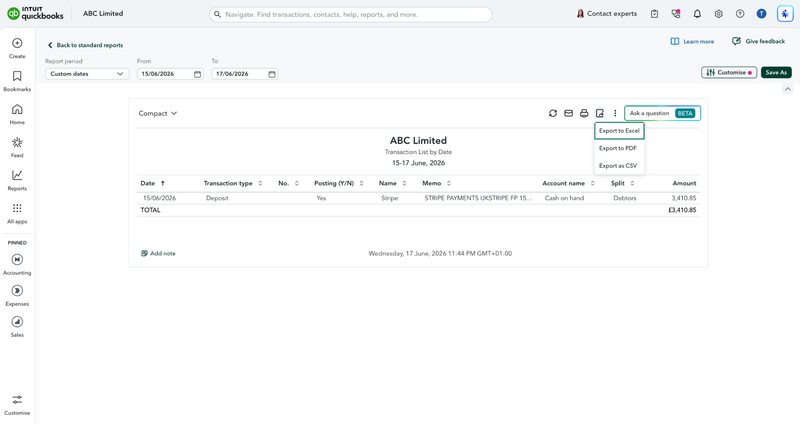
5. Select Export to CSV. Excel is also available if you prefer.
Your transactions will download as a spreadsheet with date, type, name, account, and amount columns. Repeat each tax year you want to keep on record.
Optional: Saving your Receipts.
If you've been scanning receipts in QuickBooks and want to keep copies, you can export those too, though this isn't required for MTD compliance. If you do want to keep them, we'd suggest organising them into folders by tax year (example 2024-25, 2025-26) and saving them as a zip file alongside your spreadsheet records. This keeps everything tidy and easy to find if HMRC ever asks.
You're done
Once you've exported your records. You've got everything you need. Open AbraTax, upload a spreadsheet, and you're ready to submit your quarterly updates to HMRC. No complicated migration, no data transfer, just a spreadsheet and software that actually does what you need.
Conclusion
Switching to AbraTax isn't really a migration; it's just an export and an upload. Once your records are out of Xero Free Agent or QuickBooks and saved as spreadsheets, you've got everything mtd for income tax. Needs digital records and HMRC-recognised software to submit them, no bank feeds, no features you were quietly paying for. With the filing window open now, the simplest move is to export your latest tax, Xero upload it to AbraTax, and file your first quarterly update, then cancel your old subscription with confidence!